6. Customers and customer records
On this page: On the "Customers" page, you look up each customer's visit history, record and notes. You'll also see how to find customers who haven't been back for a while and reach them through Shopify customer tags.
Plans
Customer management is available on every plan. Repeat-visit follow-up and customer tag sync are Pro features.
| Feature | Free | Basic | Pro |
|---|---|---|---|
| Customer list (search, filter, sort) | Yes | Yes | Yes |
| Customer profile (visit history, record fields, customer notes) | Yes | Yes | Yes |
| Visit cycle and next expected visit | Yes | Yes | Yes |
| Customer list CSV export | Yes | Yes | Yes |
| Duplicate check | Yes | Yes | Yes |
| Repeat-visit follow-up (finding lapsed customers and those past their visit cycle) | No | No | Yes |
| Shopify customer tag sync | No | No | Yes |
The customer list
Open "Customers" in the app menu. Once bookings come in, each customer's visit history appears here. Customers are linked to Shopify customers using the order's contact details, or the details entered for a manual booking.
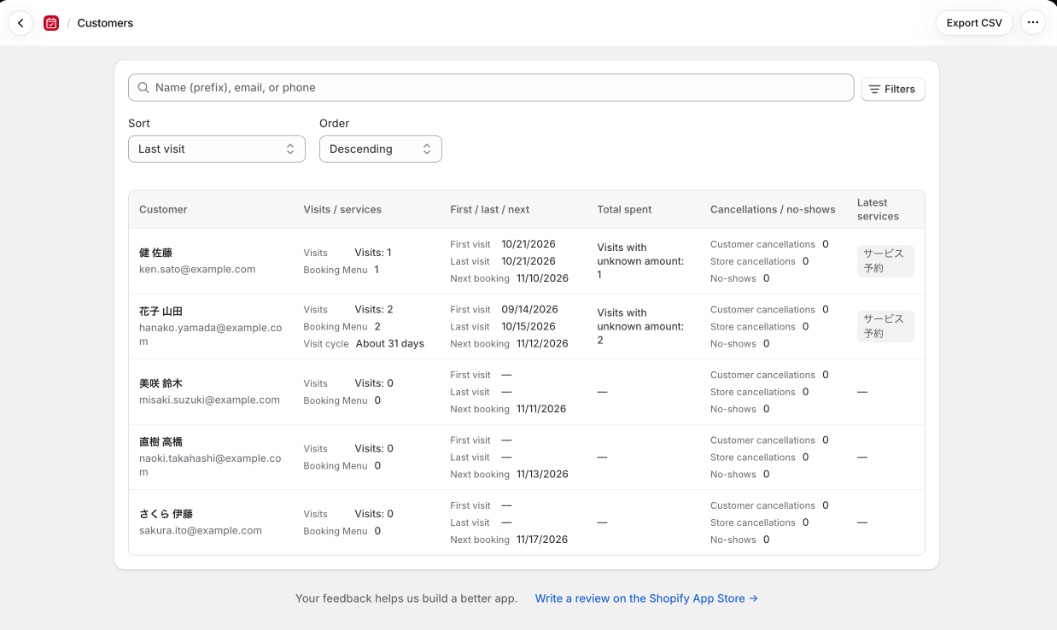
| Column | What it shows |
|---|---|
| Customer | The customer's name |
| Visits / services | The number of visits and the number of booking menus used. If the customer has a visit cycle, it shows something like "About 30 days" |
| First / last / next | First visit, last visit and next booking |
| Total spent | The total of their booking amounts. If some bookings have no known amount, it shows how many |
| Cancellations / no-shows | The number of customer cancellations, store cancellations and no-shows |
| Latest services | The booking menus from their most recent visit |
Search, filter and sort
| Action | Options |
|---|---|
| Search | Search by name (prefix), email or phone |
| Filters | Whether they have a next booking, a completed visit, a customer cancellation or a no-show; a last-visit date range; a range of visit counts; booking menu, bookable resource and location. On Pro, "Needs follow-up" is available too |
| Sort | Last visit, first visit, next booking, visits, total spent, customer cancellations, no-shows. Order: ascending or descending |
Choose your conditions and click "Apply". "Clear" resets them.
How visits are counted
| Metric | How it's counted |
|---|---|
| Visits | The number of confirmed bookings whose end time has passed. Cancelled bookings and bookings marked as no-shows don't count |
| Visit cycle | Shown for customers with two or more visits whose first and last visits are at least a day apart. It's the average interval: (last visit − first visit) ÷ (visits − 1) |
| Next visit expected | The last visit plus the visit cycle. If that date has passed, it shows something like "Days overdue: 10" |
Export the customer list to CSV
"Export CSV" on the customer list downloads a CSV file with the same search, filters and sort order as the screen. The file is named "customers_(date).csv".
The CSV has these columns:
Customer, Email, Phone, Visits, Services, First visit, Last visit, Next booking, Visit cycle (days), Next visit expected, Total booked value, Customer cancellations, Store cancellations, No-shows, Last services
- Each export holds up to 5,000 customers. If there are more, only the first 5,000 are exported. Narrow the list with filters and export in parts to get the rest
- If you export several times in a short period, you'll be asked to wait about a minute and try again
The CSV contains your customers' contact details
Be careful where you share and store it.
Customer profiles
Click a customer in the list to open their profile.
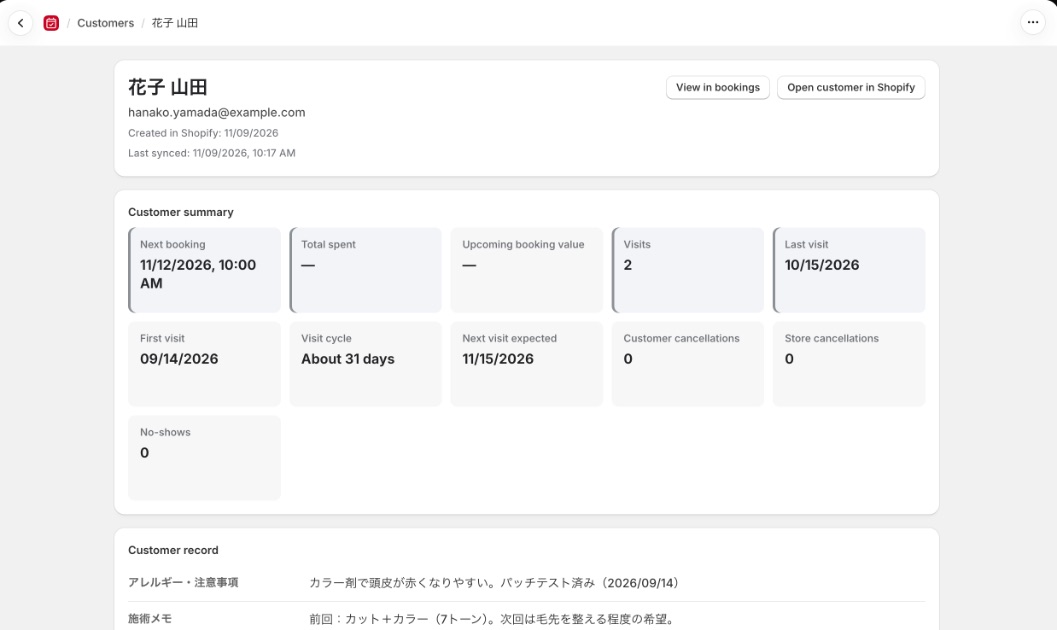
| Section | What it shows |
|---|---|
| Top of the page | When the customer was created in Shopify and when they were last synced. "View in bookings" shows only this customer's bookings on the Bookings page, and "Open customer in Shopify" opens their Shopify customer page |
| Customer summary | Visits, first visit, last visit, next booking, visit cycle, next visit expected, customer cancellations, store cancellations, no-shows, total spent, upcoming booking value |
| Customer record | The fields you defined in Settings. Fill them in with "Edit record" and click "Save" |
| Upcoming bookings | Bookings still to come |
| Booking and visit history | Each booking marked as Visited, Customer cancelled, Store cancelled or No-show. Bookings whose time was changed are marked "Rescheduled" |
| Possible duplicates | Bookings and customers that may be the same person (see Clean up duplicates) |
| Customer notes | Notes shared among your staff. Write one with "Add note" and change it with "Edit" or "Delete". Up to 5,000 characters per note |
Choose the record fields
Decide what goes in the customer record under "Customer record fields" on the "Customers" tab in "Settings". Turning things you want to check before a visit, such as allergies, preferences or treatment notes, into fields keeps everyone's records consistent.
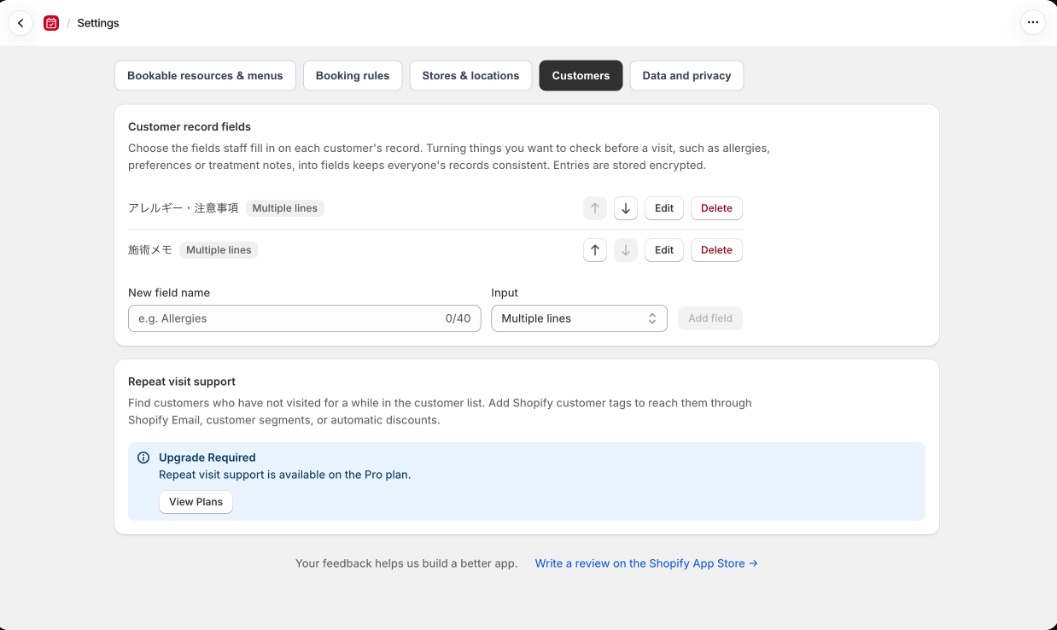
- Enter a field name under "New field name" (for example, Allergies)
- Under "Input", choose "Single line" or "Multiple lines"
- Click "Add field"
| Rule | Limit |
|---|---|
| Number of fields | Up to 20 |
| Field name | Up to 40 characters. Two fields can't have the same name |
| Text length | 200 characters for single line, 2,000 for multiple lines |
Reorder fields with the up and down buttons. What's entered in customer records is stored encrypted.
Deleting a field also deletes what was entered in it
When you "Delete" a field, what was entered in that field is removed from every customer's record. This can't be undone.
Clean up duplicates
"Possible duplicates" on a customer profile shows two kinds of candidates.
| Candidate | What to do |
|---|---|
| Bookings with the same name that aren't linked to any customer | These are bookings such as manual ones entered with only a name. If they belong to this customer, select them and click "Link selected bookings to this customer". It takes a few minutes for visits and other figures to update |
| Customers who may be duplicates | Customers with the same email, the same phone number or the same name. If they're the same person, merge them from the customer page in Shopify admin. Their bookings, notes and records in this app are then combined automatically |
Repeat-visit follow-up (Pro)
On Pro, you can find customers in the customer list who haven't visited for a while. The number of such customers appears in "Repeat visit follow-up" on the home page and in "Repeat-visit follow-up" on the customer list. "Filter by this segment" shows only those customers.
| Segment | Who's included |
|---|---|
| Lapsed customers | Customers whose last visit was at least the set number of days ago and who have no upcoming booking |
| Past their visit cycle | Customers who are past their usual visit interval (next visit expected) and have no upcoming booking |
Set when a customer counts as lapsed
Set this under "Repeat visit support" on the "Customers" tab in "Settings". After changing values, click "Save" in the save bar.
| Setting | What it does |
|---|---|
| Days before a customer counts as lapsed | Between 14 and 365 days. The default is 60 |
| Judge lapsed customers by each customer's visit cycle | When on, customers with two or more visits are judged by a multiple of their average visit interval since their last visit. The number of days used is kept between 14 and 365. Customers with one visit use the number of days above |
| Multiple of the visit cycle before a customer counts as lapsed | Between 2× and 5×. The default is 2× |
Add Shopify customer tags
The app adds tags to the Shopify customer records of customers who match, and removes them when they no longer match. Turn each tag on or off individually. All tags start off.
| Tag | Added when |
|---|---|
yoyaku-dormant | The customer's last visit is at least the lapsed threshold ago and they have no upcoming booking |
yoyaku-no-repeat | The customer has visited only once and still has no upcoming booking after the set number of days since that visit (7–365 days, default 30). They can also have the lapsed tag |
yoyaku-regular | The customer has at least the set number of visits (2–100, default 5) |
yoyaku-no-show | The customer has at least one no-show |
- Other tags are left untouched
- The app adds and removes tags periodically, so they don't appear the moment you save
- If you turn a tag off or leave Pro, syncing stops but tags already applied stay in place
You can use these tags as conditions when reaching customers through Shopify Email, customer segments or automatic discounts. You can also automate what happens when a tag is added with Shopify Flow's "Customer tags added" trigger (9. Automate with Shopify Flow).
What's next
- Set up messages to customers: 7. Customer notifications