3. Booking rules
On this page: On the "Booking rules" tab in "Settings", you decide how bookings are accepted and what new booking menus start with.
The "Booking rules" tab has two groups. When you change a value, a save bar appears at the top of the screen; click "Save" to keep your changes.
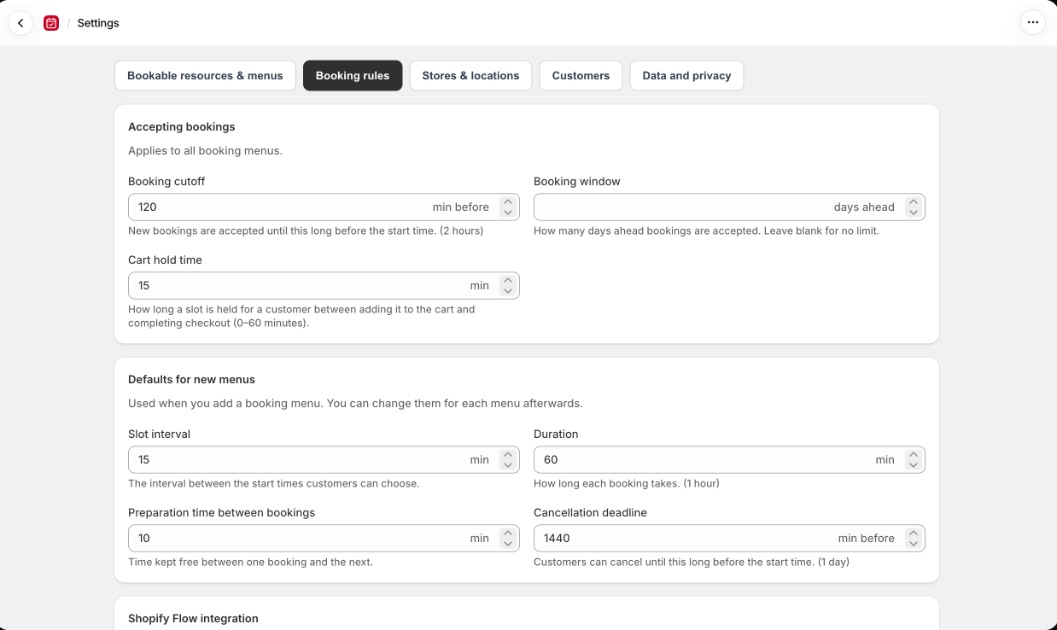
| Group | What it applies to |
|---|---|
| Accepting bookings | Every booking menu |
| Defaults for new menus | The starting values when you add a booking menu. You can change each menu afterwards |
For values of 60 minutes or more, a reading such as "(2 hours)" or "(1 day)" appears under the field.
Accepting bookings
These rules apply to every booking menu.
| Field | What it does | Allowed values |
|---|---|---|
| Booking cutoff | New bookings are accepted until this long before the start time | 0–10,080 min before |
| Booking window | How many days ahead bookings are accepted. Leave it blank for no limit | 1–730 days ahead |
| Cart hold time | How long a slot is held for a customer between adding it to the cart and completing checkout, so nobody else can book it | 0–60 min |
Booking window
The booking window is counted in dates in the location's timezone. Dates beyond the window can't be chosen in the booking calendar on your store.
The booking window applies to bookings made on your store. It doesn't apply to manual bookings in the admin or to moving bookings on the Bookings page.
Cart hold time
When a customer clicks "Book Now" in the booking calendar, the slot is held before the product goes into the cart. While it's held, the booking shows as "Awaiting checkout" on the Bookings page. If checkout isn't completed before the hold time runs out, the slot becomes available to other customers again.
Setting it to 0 minutes can cause double bookings
If several customers are checking out the same slot at the same time, all of their bookings may go through. Avoid setting it to 0.
Defaults for new menus
These are the values that fill the fields when you add a booking menu. Changing them doesn't change menus you've already added. To change an existing menu, use "Edit" on that menu (2. Booking menus and resources).
| Field | What it does | Allowed values |
|---|---|---|
| Slot interval | The interval between the start times customers can choose | 5–120 min |
| Duration | How long each booking takes | 15–480 min |
| Preparation time between bookings | Time kept free between one booking and the next | 0–120 min |
| Cancellation deadline | Customers can cancel until this long before the start time | 0–10,080 min before |
Booking menus use the slot interval in steps of 15 minutes. The cancellation deadline is used in whole hours, rounded up (for example, 90 minutes before becomes 2 hours before).
Booking questions
Under "Booking questions" on the "Booking rules" tab, you can create questions that customers answer when they book. Use them to ask about allergies or a preferred staff member, or to have customers agree to your policies, and receive the answers with the booking. Available on all plans.
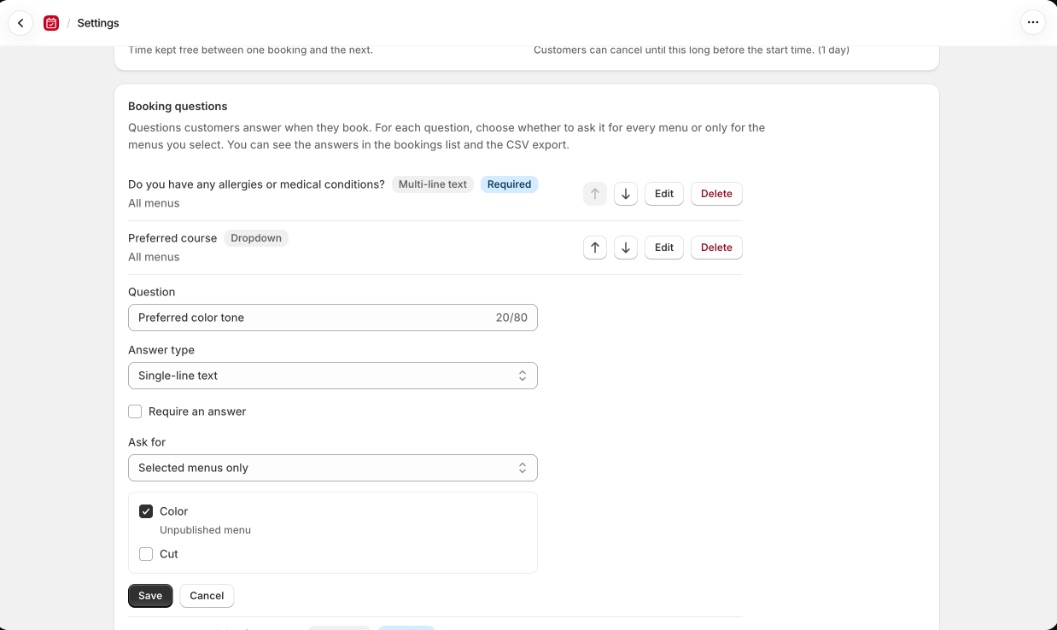
Click "Add question", fill in the fields below, and click "Save".
| Field | What it means |
|---|---|
| Question | The question shown to customers. Up to 80 characters |
| Answer type | Choose "Single-line text", "Multi-line text", "Dropdown", or "Checkbox" |
| Options | Only for "Dropdown". Enter one option per line, from 2 to 20 options |
| Require an answer | When on, customers can't book without answering |
| Ask for | Choose "All menus" or "Selected menus only". With "Selected menus only", pick the menus from the list |
You can create up to 20 questions. Change the order with the ↑ ↓ buttons; the booking calendar on your store shows the questions in the same order.
What customers see
After a customer picks a time slot, the questions appear below the booking summary. If they click "Book Now" without answering a required question, the booking doesn't go ahead and the unanswered field is focused.
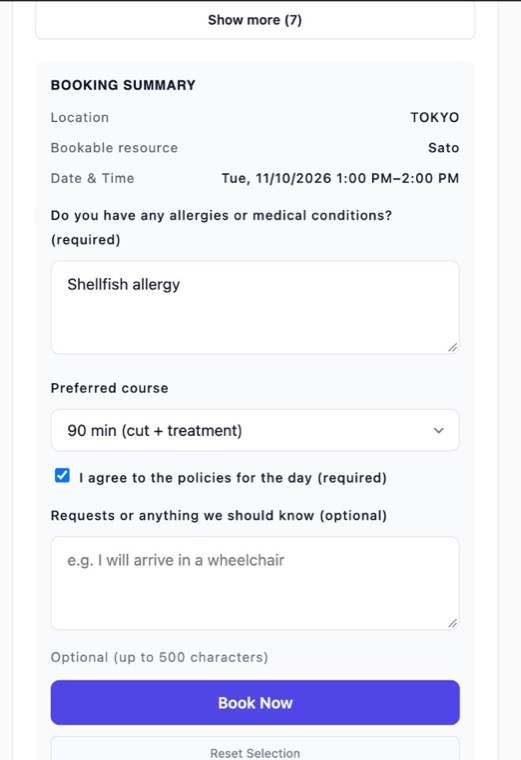
For "Checkbox" questions, the question text appears next to the checkbox. Use it for confirmations such as "I agree to the policies".
When a customer books several menus for one visit, questions set to "All menus" are asked for each menu.
Checking the answers
You can see the answers in three places:
- The "Customer" line in the "Memo" column of the bookings list (shown together with the customer note)
- The "Booking question answers" column of the bookings CSV
- The description of your store calendar (ICS download and subscription)
If you edit or delete a question later, existing bookings keep the question text and answer from when they were booked.
Shopify Flow integration
Below the "Booking rules" tab is the "Shopify Flow integration" section, available on Pro. It's covered in 9. Automate with Shopify Flow.
What's next
- Add the booking calendar to your store: 4. Add the calendar to your store